2026-08-04 · 10 min read
A Practical PDF Packet Checklist Before You Send It
A grounded workflow for turning scans, screenshots, and stray PDFs into one clean packet that a client, vendor, school, or support team can actually use.
Search intent
For users who need to combine scans, forms, screenshots, or attachments into a PDF packet that is easy to open, review, and forward.
Key takeaways
- Build the packet around what the recipient needs to review, not around how the files were originally saved.
- Remove extra pages before you merge and compress anything.
- Use image conversion only when it solves a real compatibility or annotation problem.
- Keep one source version and one send version so you do not have to rebuild the packet later.
Tool workflow
Turn loose images into proper pages
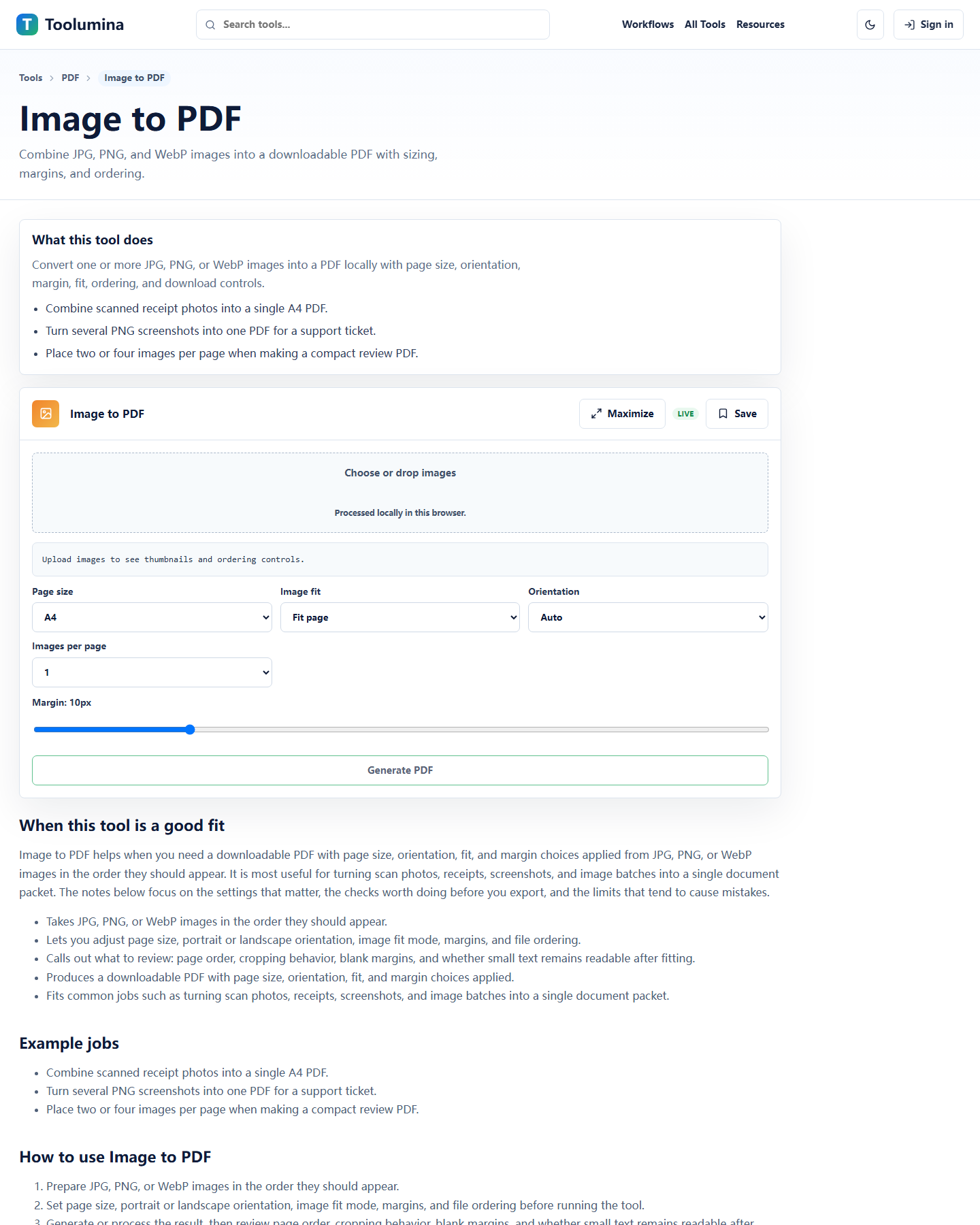
If half the material starts as phone photos or screenshots, convert those into a PDF first so you are working with one document format instead of a mix of files.
Image to PDFAssemble the packet in review order
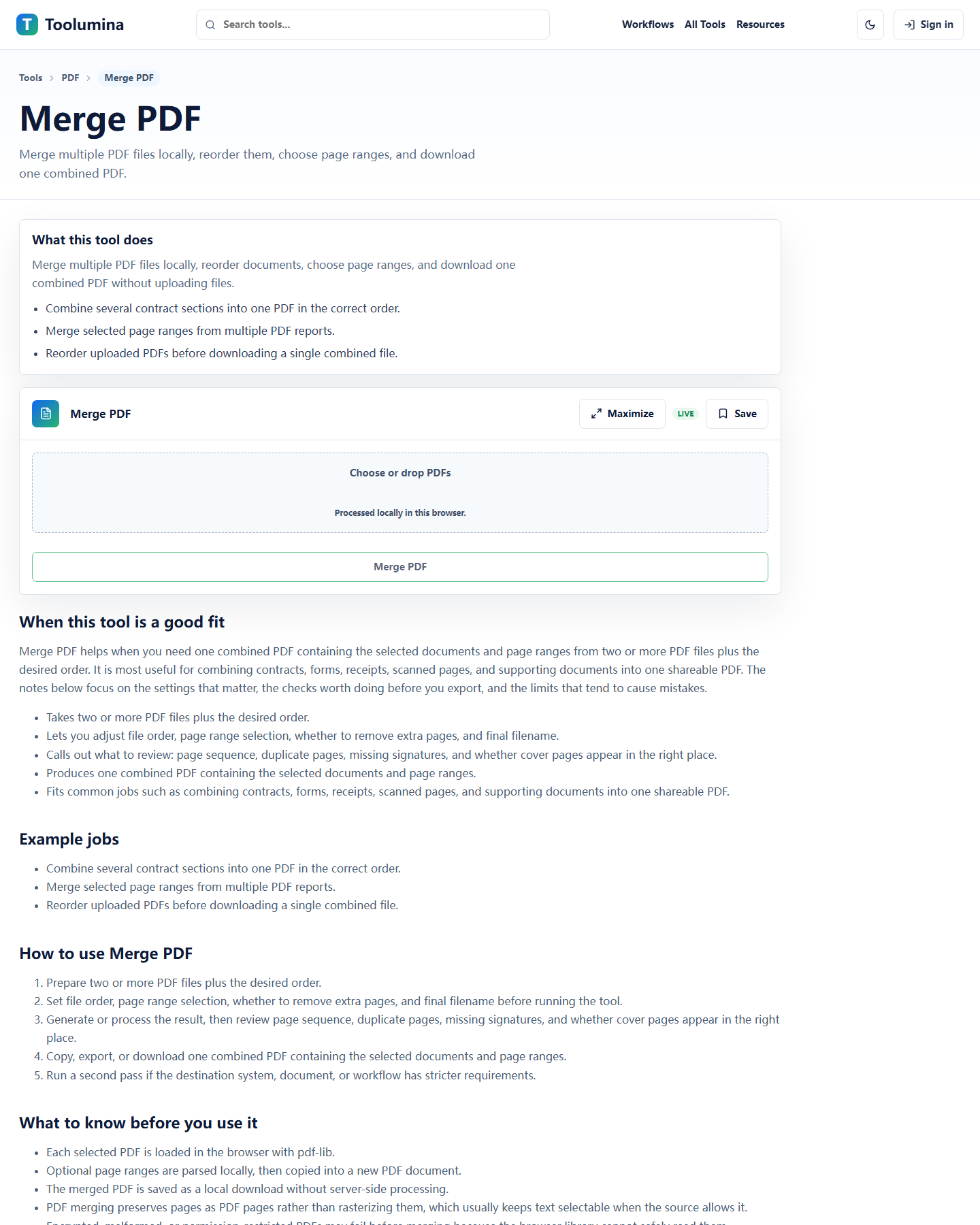
Merge the documents in the order the other person will read them, then split out anything that does not belong in the final send. It is faster to remove noise now than to explain it later.
Merge PDFCompress only after the content is final
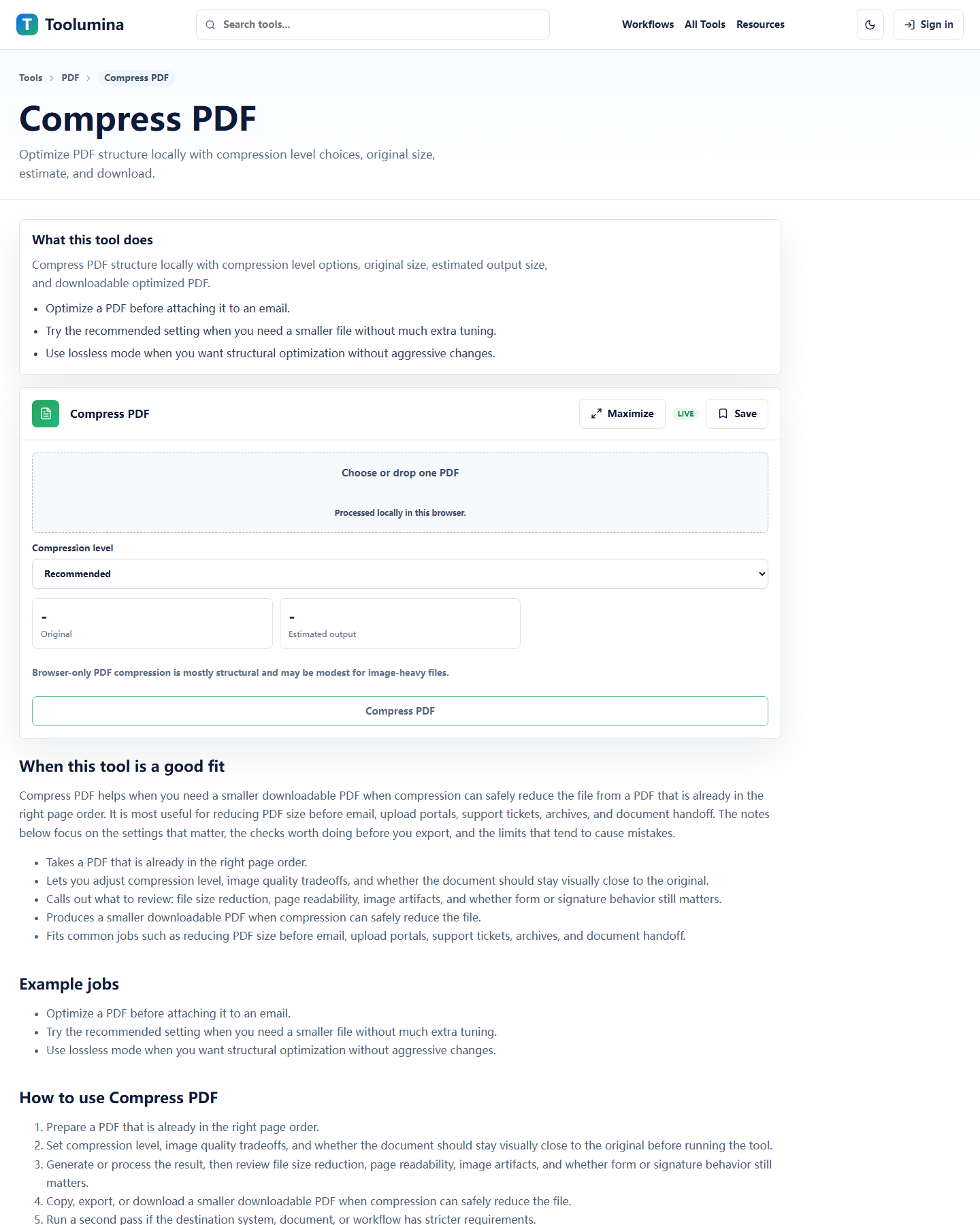
Once the packet is complete, compress the finished file and do one last review on a normal laptop or phone. Compression should be the last cleanup step, not the first.
Compress PDFScreenshots from the workflow
Start from the other person's job
Most bad PDF packets are not technically broken. They are just annoying. The pages are out of order, the supporting screenshot is there twice, the signature page is upside down, or the file is much larger than it needs to be. The recipient can still open it, but they have to work harder than they should.
A cleaner way to assemble a packet is to think about the first person who will receive it. Are they approving an expense, checking an application, reviewing a signed document, or trying to reproduce a support issue? Once that is clear, page order becomes easier. Lead with the main form or main issue, keep supporting material behind it, and leave out anything that does not help the next decision.
- Put the primary document first.
- Group supporting evidence behind the page it explains.
- Remove duplicates even if they seem harmless.
Clean the packet before you make it smaller
One of the most common habits is to compress early because the raw files look too large. In practice, that usually creates extra work. If you compress a messy packet, then notice two pages should be removed or reordered, you often end up repeating the whole process.
A better sequence is simple: gather the inputs, decide the order, merge the useful parts, split out anything that should not stay, and only then worry about size. This keeps the document readable while you are still making content decisions. It also helps when you need to send slightly different versions to different people.
- Merge complete sections first.
- Split out pages that belong to another audience.
- Compress the final version, not the draft.
Screenshots and scans need different treatment
Phone scans, whiteboard photos, and browser screenshots all end up in PDF packets, but they do not behave the same way. A photographed receipt may need page rotation and margin cleanup. A browser screenshot usually needs cropping more than quality reduction. A signed form exported from another system may already be perfectly fine as-is.
This is why forcing every input through the same step often hurts quality. Use Image to PDF when you really are starting from image files. Use Merge PDF when the source is already a PDF. Use PDF to JPG only when you need a page image for a ticket, annotation round, or visual proof that someone will paste into another system.
- Do not rasterize a good text PDF just because some pages started as images.
- Rotate or re-export problem pages before they become part of the final packet.
- Convert PDF pages to JPG only when another tool or workflow truly needs images.
A quick review catches the mistakes people actually notice
By the time a file is technically correct, there are still a few practical things that can go wrong. A packet may look fine on a large monitor but be hard to read on a phone. A compressed page may still be legible to you because you know what it says, while someone seeing it for the first time has to zoom in and guess.
Before sending, open the final PDF once in the way a normal recipient will. Scroll it from top to bottom. Make sure pages are upright, names and dates are readable, screenshots are not clipped, and no internal draft notes remain. This takes a minute and prevents the kind of follow-up email nobody wants.
- Open the final file on one normal laptop screen or phone.
- Check the first page, the smallest text, and the last page.
- Make sure the filename still makes sense after all the edits.
Keep a source version and a send version
When a PDF packet matters, the safest habit is to keep the original pieces and a clean final copy separately. The send version is what you email or upload. The source version is what lets you make a corrected copy later without starting over from scratch.
This becomes useful surprisingly often. A client asks for the same packet without one page. A school wants the same forms but in a different order. A support team wants only the error screenshots and not the full conversation. If you kept the components cleanly, that change is easy. If you flattened everything into one anonymous file too early, it is not.
- Save originals in one folder and the send-ready PDF in another.
- Use clear filenames with version hints when the packet may change.
- Do not overwrite the only readable copy with an over-compressed export.
Background notes
Why page order matters more than people expect
When someone receives a PDF packet, they usually decide within the first few pages whether the file feels organized or chaotic. That first impression affects how quickly they can approve, reply, or escalate the request.
A well-ordered packet does not need extra explanation in the email body. The document itself tells the story in the right sequence.
When PDF pages should become JPG images
Converting a PDF page to JPG is useful when you need to paste a visual into a support system, chat thread, or slide. It is much less useful when the original PDF already contains readable text and should stay searchable.
In other words, page images are great for communication. They are usually not the best long-term storage format for documents.