2026-07-26 · 7 min read
QR Code, Invoice, and Receipt Generator Workflow for Small Business Ops
A lightweight process for creating QR links, invoices, and receipts without turning a small operational task into a larger system project.
Search intent
For users searching for QR code generator, invoice generator, receipt generator, or simple business document workflows.
Key takeaways
- Use QR codes for stable URLs, payment links, forms, menus, and contact flows.
- Create invoices before payment and receipts after payment.
- Keep document numbers, dates, line items, and contact details consistent.
- Preview generated documents before sending them to customers.
Tool workflow
Create the customer-facing link
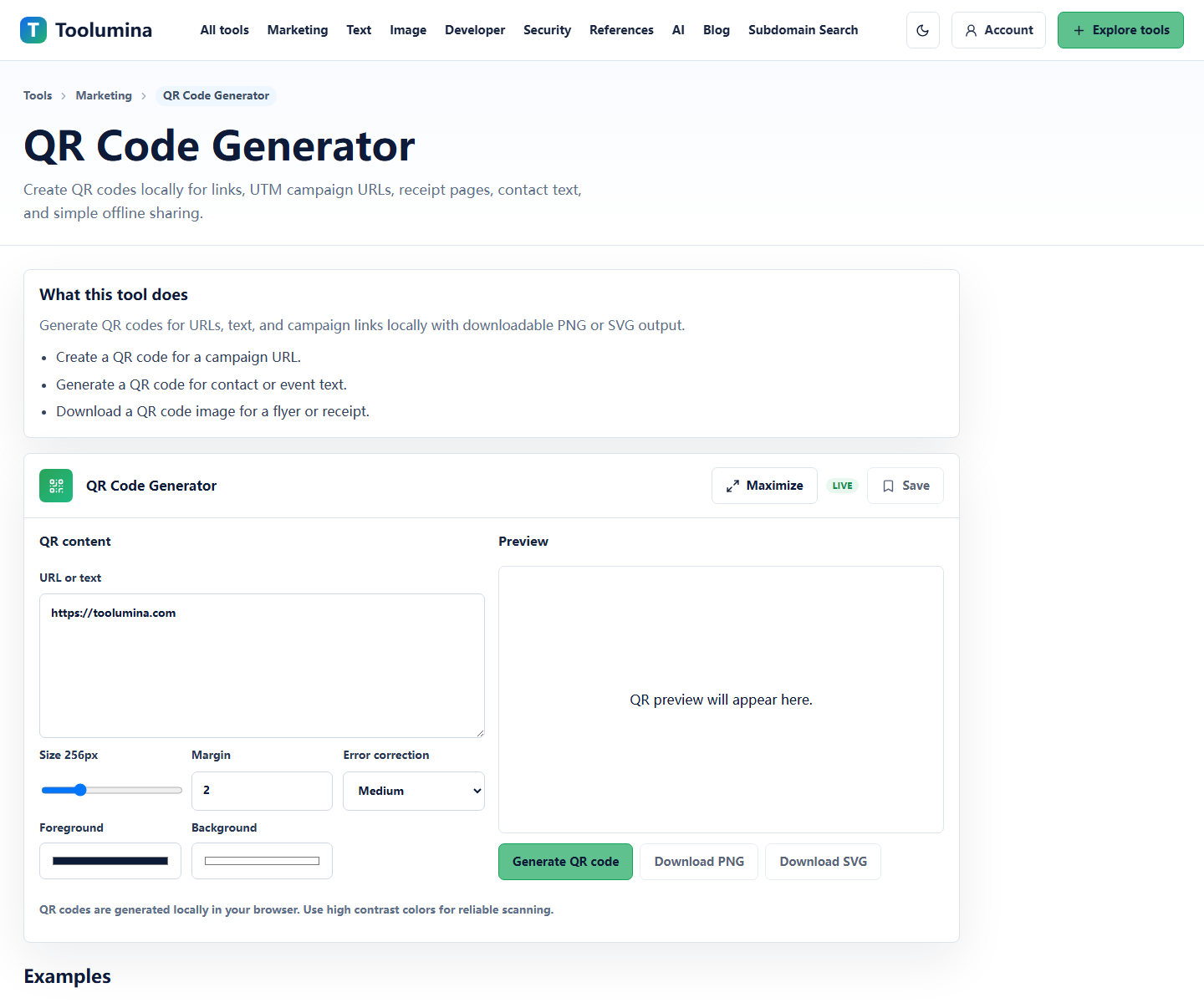
Generate a QR code for a stable URL such as a payment page, booking form, menu, feedback form, or support link. Test the link before placing it on print material.
QR Code GeneratorCreate the invoice before payment
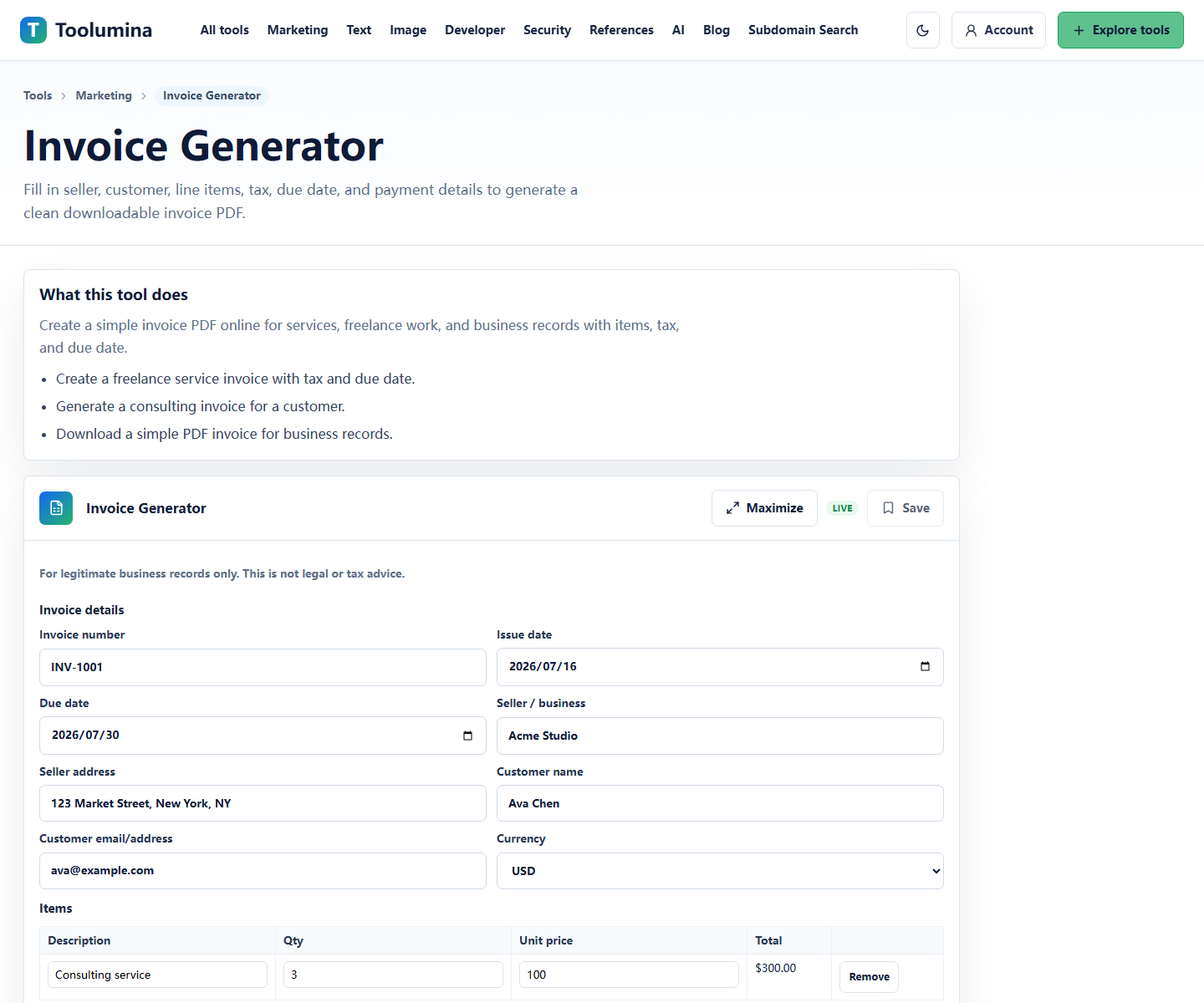
Use an invoice when requesting payment. Check customer details, line items, tax, due date, payment instructions, and invoice number before sending.
Invoice GeneratorCreate the receipt after payment
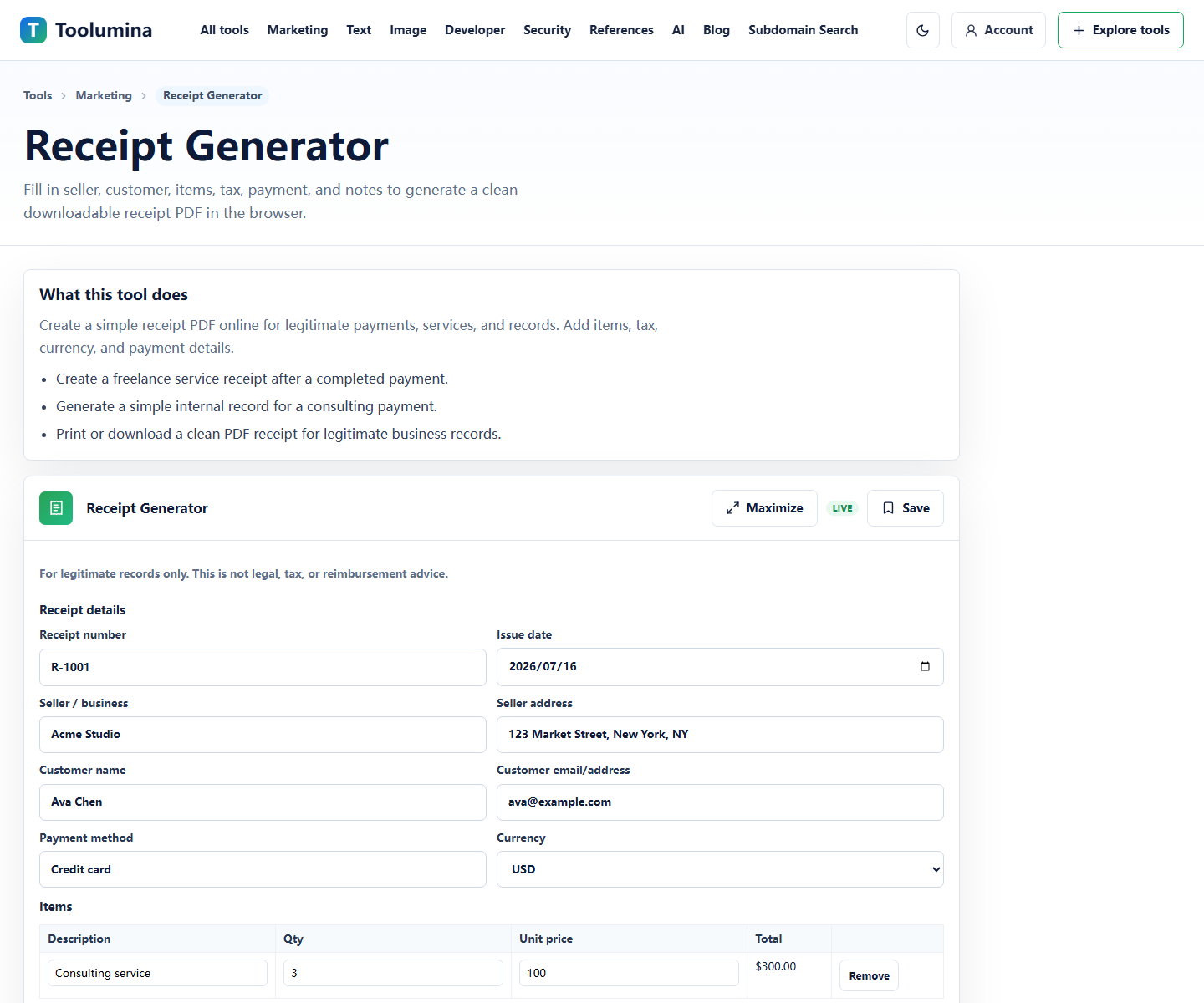
Use a receipt when payment has happened. Include date, amount paid, item details, payment method, and a reference that matches your records.
Receipt GeneratorScreenshots from the workflow
Keep QR codes tied to stable destinations
A QR code is only as useful as the destination behind it. For business use, point the code at a stable page you can keep working: a payment link, booking form, contact page, menu, or support form.
Before printing or sending the code, scan it on a phone and confirm that the destination loads without extra confusion.
- Use short, stable URLs.
- Avoid temporary links for printed material.
- Test the QR code at the size users will actually scan.
Invoices and receipts answer different questions
An invoice says what is owed. A receipt says what was paid. Mixing them creates messy customer communication and messy records.
For small operations, a simple consistent template is often enough: business details, customer details, date, number, line items, totals, and payment status.
Preview before sending
A document generator is fastest when you still preview the result. Check names, dates, currency, totals, tax, and item descriptions before sending the file or copying the text.
This is especially important when reusing a previous invoice or receipt as a starting point.
Background notes
Simple tools are not accounting systems
A generator can create a clean document quickly, but it is not a full accounting system. Keep your official record, numbering rules, and tax handling in the system or process your business relies on.
Use quick generators for lightweight documents, drafts, one-off customer requests, or operational hand-offs where a full system would be unnecessary.
What to keep consistent
Consistency matters more than decoration. Use stable document numbers, clear line item names, visible totals, and a repeatable way to store sent documents.
That makes later support, refunds, bookkeeping, and customer questions much easier.